Goal
Create a project, look at its settings, place a three-pole switch fuse on the sheet, and start wiring it up.
About ten minutes, and nothing to prepare.
This chapter is deliberately small. Control Circuit has a great many tools, and you will not meet most of them today.
By the end you will have a saved project with one real symbol on it, part wired, and you will know where the main parts of the screen are.
Worth knowing Everything a Sheet needs is saved inside the Sheet, so your work never depends on a library staying put. Two things to know before you begin.
Part 1: Start a project
Launch the program and choose New
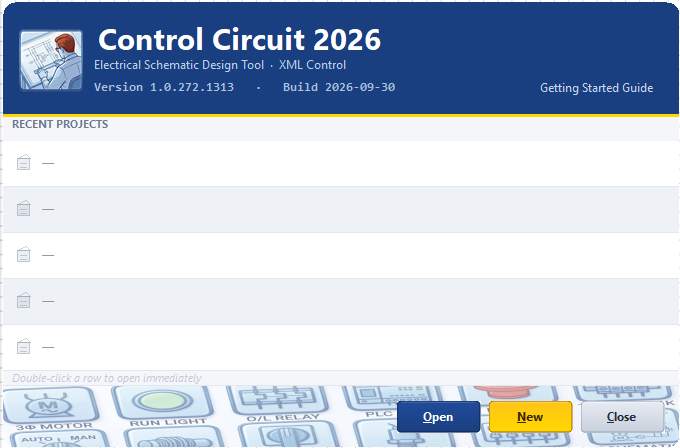
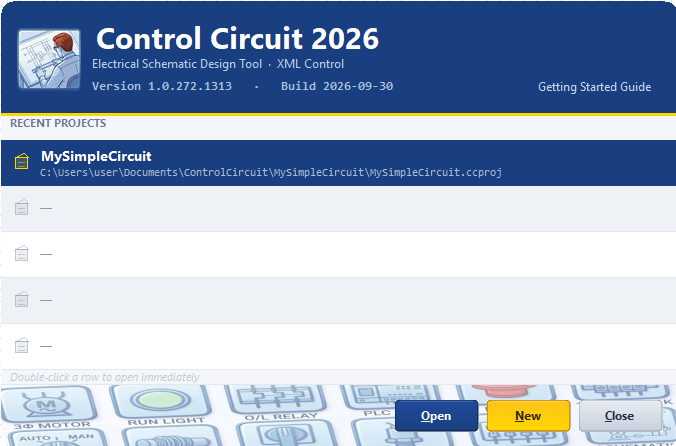
The start screen lists your recent projects. On a first run the list is empty. Choose New.
The Getting Started Guide link at the top right is always there if you want the overview first.
The start screen. Double-clicking a recent project opens it immediately.
Name the project
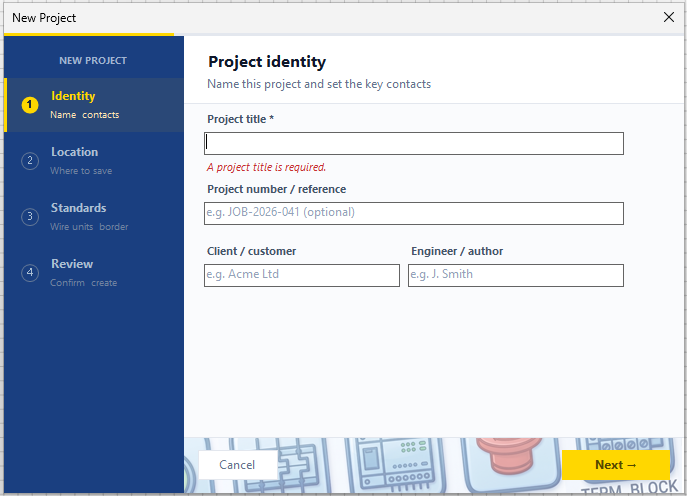
The New Project wizard has four steps, listed down the left: Identity, Location, Standards and Review.
Only the Project title is required; you cannot move on without one.
Step 1 of 4. The red message clears as soon as you type a title.
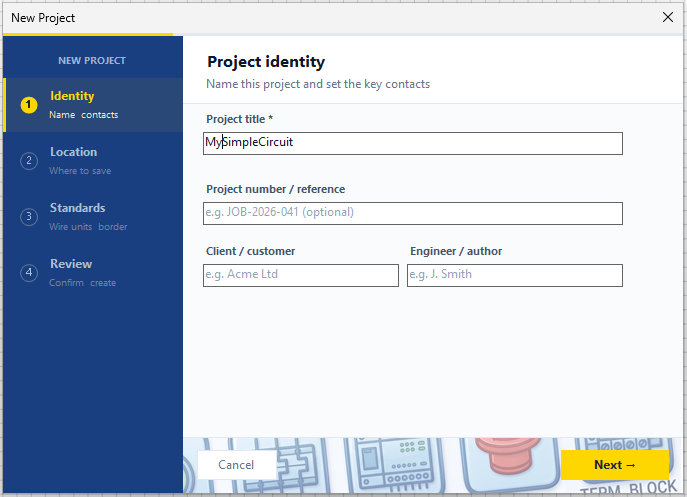
Type a title. Here we use MySimpleCircuit. The project number, client and engineer are optional, and you can fill them in now or at any time later.
Choose where to save it
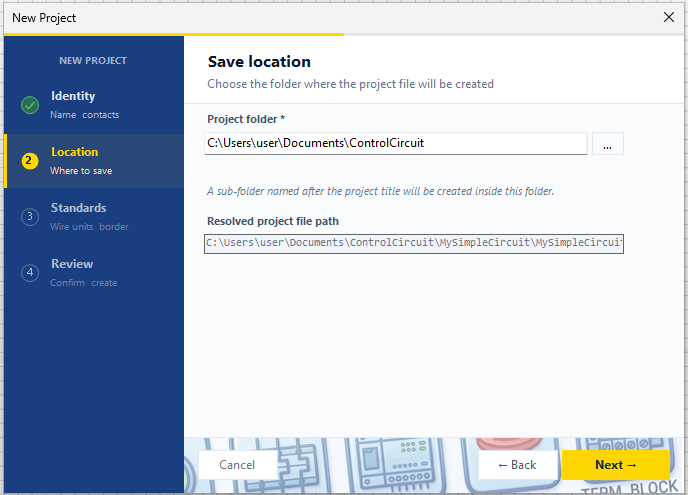
Pick the folder that will hold your projects. Control Circuit creates a sub-folder named after the project inside it,
so you never need to make one yourself. The full path it will use is shown underneath.
Set the standards
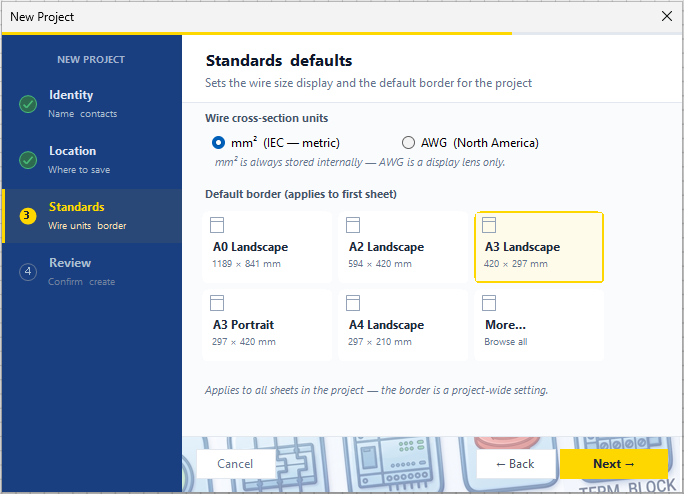
Two choices here.
Wire cross-section units: mm² (IEC, metric) or AWG (North America). This only changes how wire sizes are displayed; mm² is what is stored underneath.
Default border: the drawing sheet size. Pick one and stay with it.
Border choice The border is a project-wide setting. It applies to every sheet, and changing it later moves everything drawn on them. A3 landscape is a sensible default if you are unsure.
The list shows the common sizes; More… browses the rest. Later on you can build your own borders, including your own branding, with the advanced Border Management tool.
Review and create
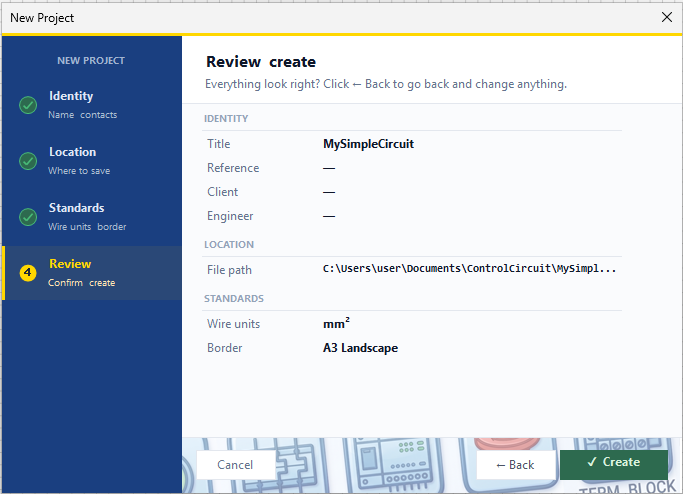
The last page lists everything you chose. If anything looks wrong, use Back. Otherwise choose Create.
Find your way around
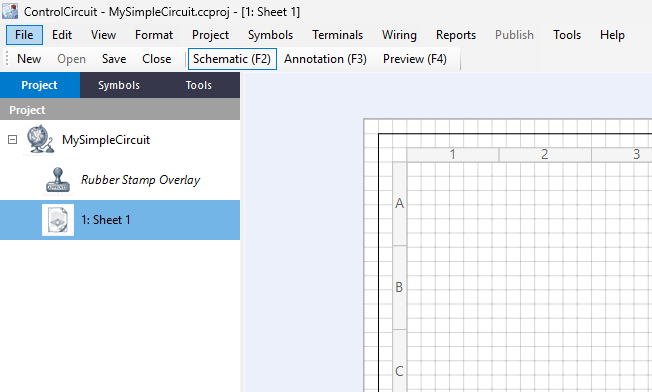
Your project opens with its first sheet, Sheet 1, already drawn with a border and a title block. Three things to notice:
The Project, Symbols and Tools tabs at the top left are the three panels you will use most. This chapter uses all three.
The menu bar runs across the top. Most of what you do later lives in Symbols, Wiring and Reports.
The Schematic (F2), Annotation (F3) and Preview (F4) buttons switch what you are looking at. Stay on Schematic for now.
Part 2: Project settings
Reopening a project
Close the project and you will see it at the top of the recent list on the start screen. Select it and choose Open, or simply double-click it.
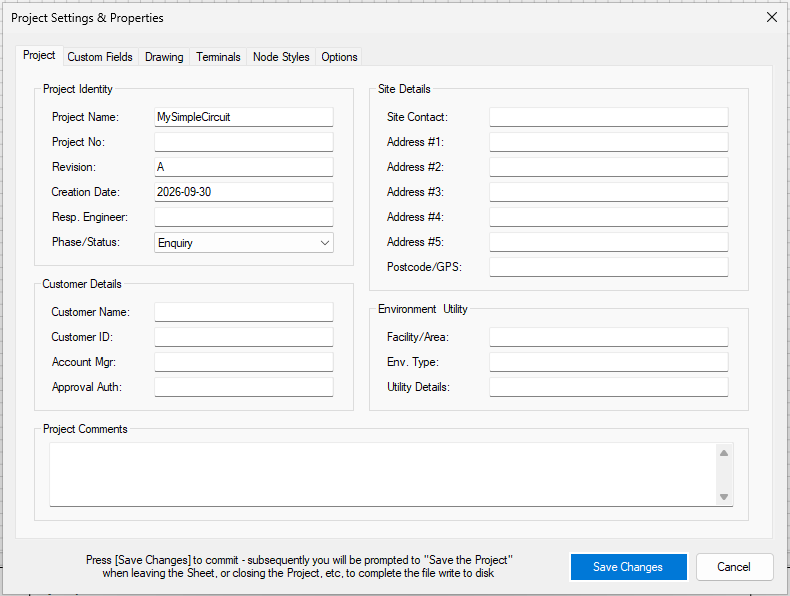
Project Settings & Properties
The details you gave the wizard live here, together with a good deal more: revision, status, site and customer details, and comments. Whatever you enter flows into the title block and into reports.
Changes are not final until you choose Save Changes. You will be reminded to save the project itself when you leave the sheet or close it.
Project settings. Fields you left blank in the wizard stay blank here, ready to fill in.
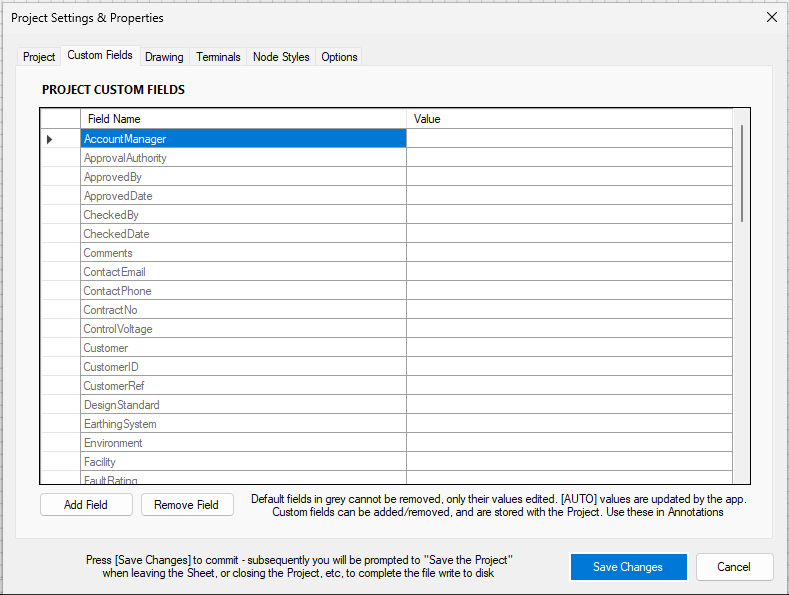
Custom Fields, and the other tabs
The other tabs — Custom Fields, Drawing, Terminals, Node Styles and Options — are there when you need them.
The grey Custom Fields are built in and can only have their values edited; you can add your own, and use them later in annotations.
Skip for now You do not need any of these to finish this chapter. Close the dialog and carry on.
Part 3: Place a symbol and start wiring
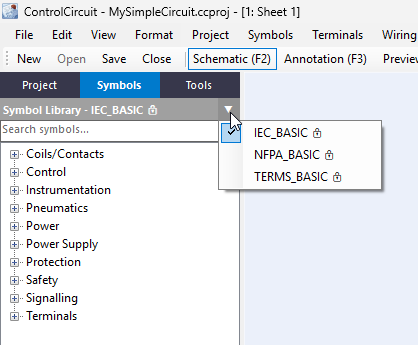
Open the Symbols tab and choose a library
Select the Symbols tab. The symbol library name is shown at the top; click the drop-down arrow to switch library. There are three to start with:
IEC_BASIC, NFPA_BASIC and TERMS_BASIC. We use IEC_BASIC.
Symbols are grouped by type: Coils/Contacts, Control, Power, Protection and so on. Expand a group with the +.
About those padlocks They simply mean the shipped libraries are protected, so they always stay exactly as shipped. You are never stuck with them: clone any symbol and adapt it into a library of your own, or build one from scratch. Got symbols from a CAD package? Bring them in from DXF. And with a PRO licence you can export a professional-quality PDF of any library to share with your team, your customer, or the public.
Turn on the preview
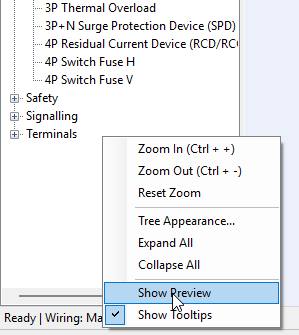
Right-click in the symbol list for a menu. Tick Show Preview so a drawing of the highlighted symbol appears beneath the list. Show Tooltips is worth having on as well.
The same menu has zoom, tree appearance and Expand All / Collapse All.
Find the symbol you want
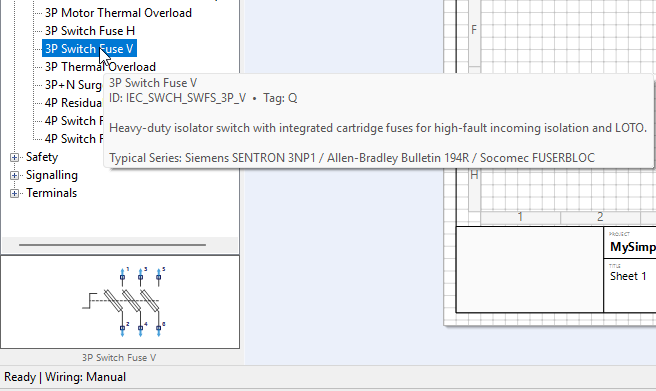
Expand Power and rest the pointer on 3P Switch Fuse V. The tooltip gives its ID, its default tag letter (Q), a description and typical real-world series. The preview shows the symbol.
Search Not sure where a symbol lives? Type part of a word into the “Search symbols” box above the list. Every symbol in the selected library that partly matches is shown, with its groups opened for you. It looks at names, IDs, keywords, descriptions and typical hardware, so a partial word such as fuse, relay or motor is enough. Clear the box to see the whole library again. Search covers the library you have selected, so switch library to search another.
Drag it onto the sheet
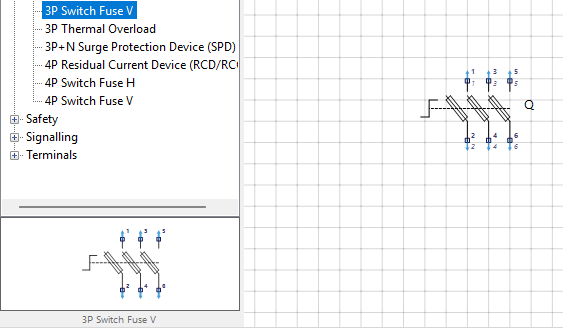
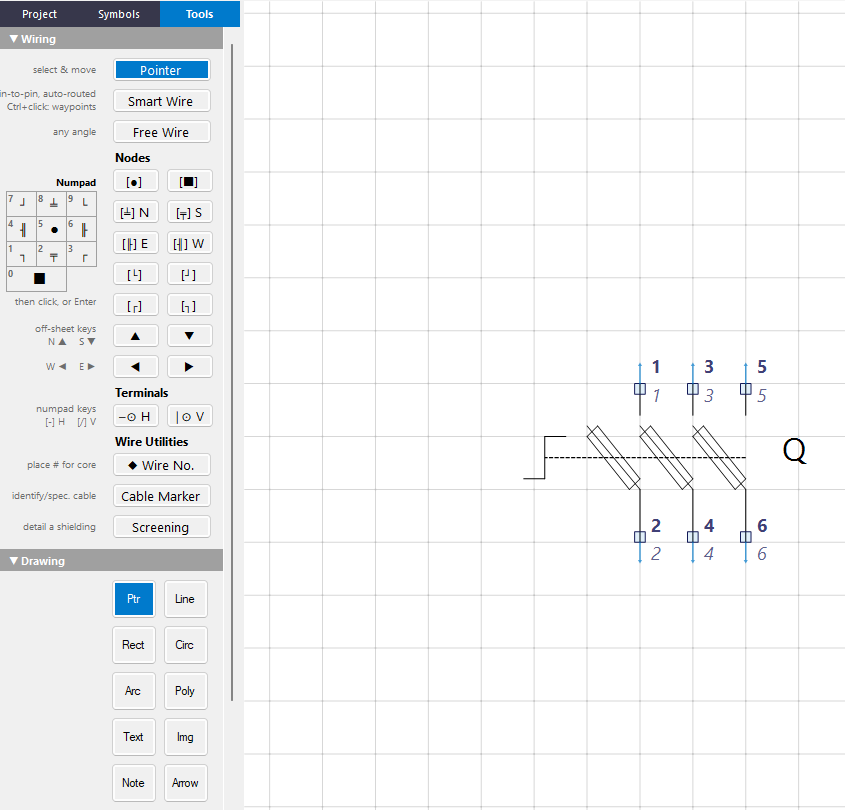
Drag the symbol from the list, or from the preview, onto the sheet and let go. Its six pins are numbered 1 to 6, and it has picked up the tag Q.
Switch to the Tools tab
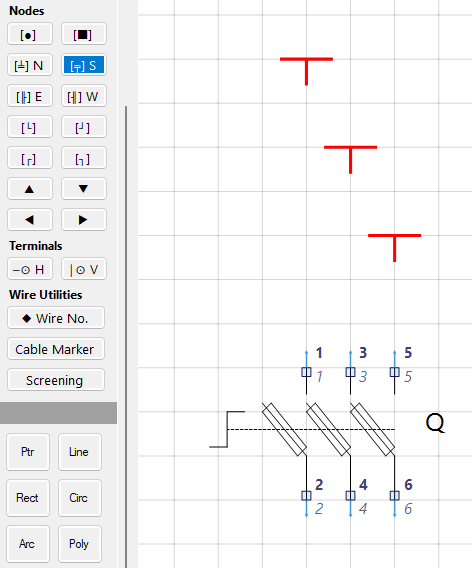
Select the Tools tab. The Wiring group has the Pointer, the wire tools and the Nodes you will use in a moment. The Drawing group below it has lines, shapes, text, notes and so on.
Do not learn it all There are a lot of buttons. You will meet the others one at a time in later chapters. Today you only need the Nodes.
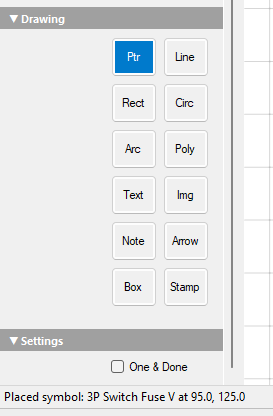
One & Done
At the bottom of the Tools panel, the One & Done checkbox controls what a tool does after you use it. With it ticked, the tool goes back to the Pointer after a single placement; without it, the tool stays active so you can place several in a row.
The status bar along the bottom of the window also tells you what you just did, for example Placed symbol: 3P Switch Fuse V.
Drop some nodes
From Nodes, choose the S Junction node and click three times, once above each of the upper pins (1, 3 and 5), roughly in line with them. They show as red T shapes.
Nodes are the building blocks of a circuit: they mark where a wire starts, ends, turns or joins another. A T-shaped Junction can point N, S, E or W, which is why the palette has four of them. The letter is a compass direction: the middle branch of the T, the stem, points that way. An S node has its stem pointing down the sheet.
Auto-wire
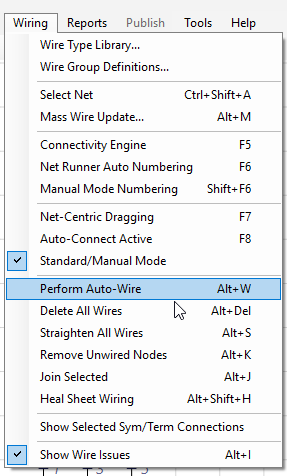
Open the Wiring menu and choose Perform Auto-Wire, or press Alt+W.
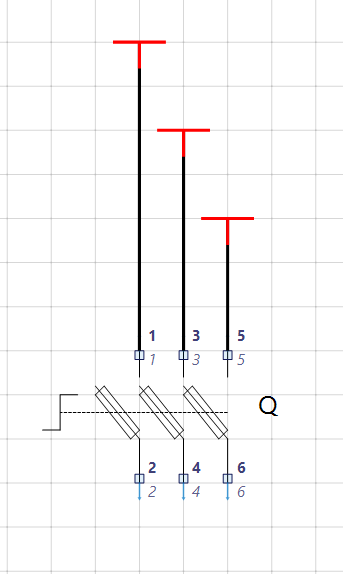
It draws the wires it can infer between aligned pins and nodes on the current sheet.
Undo Auto-Wire takes an undo snapshot first, so if you do not like the result, one undo puts it back.
The Wiring menu is also where you will find the Connectivity Engine, numbering and the wire-type library.
Auto-Wire is only the start It is a fast, convenient one-off pass, and Control Circuit has more help where that came from. Auto-Connect (F8) wires as you work: line a node or pin up with another and the wire appears, move it out of line and the wire goes. It can cut the effort of connecting your symbols and nodes dramatically. You will meet it properly in a later chapter.
Done
Three wires now run from the pins up to the Junction nodes. You have a saved project, a real symbol, and a semi-wired circuit.
What you just did
Created a project with the wizard and chose a project-wide border and wire units.
Opened Project Settings & Properties, where the project details live.
Chose a symbol library and placed a symbol, using the preview and tooltips to find the right one.
Placed nodes from the Tools tab and joined them with Perform Auto-Wire.
Next
Chapter 2 explains how wiring works and the tools and methods for it, including the Auto-Connect mode mentioned above. Until then, the reference topics behind this chapter are in the program's help (F1):
Project Workflow, Perform Auto-Wire and Working with Wiring.