Put the setup file somewhere local
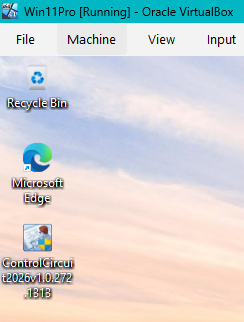
Copy the setup file to your Desktop (or any folder on your own drive) before you run it.
The file name carries the version, so it will look like ControlCircuit2026v1.0.272.1313.exe.
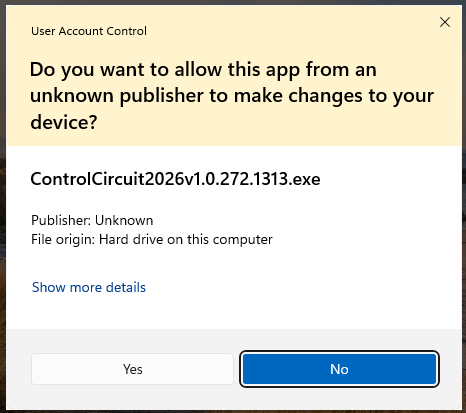
Allow it to make changes
Windows asks whether you want to allow the app to make changes to your device. Choose Yes.
It may name the publisher as Unknown. That is expected for now: the setup file is not yet digitally signed, which is a separate step from being safe to run.
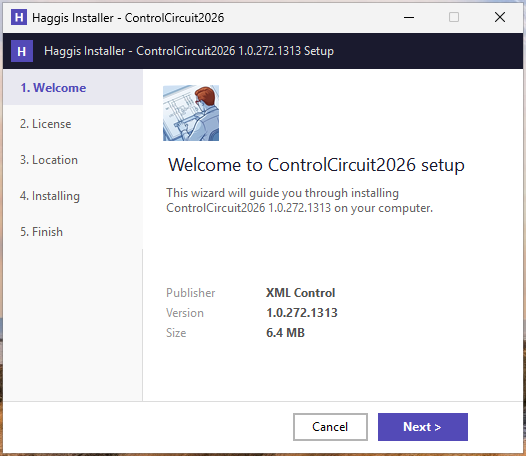
Welcome
The setup wizard opens on a short welcome page that shows the version you are about to install, who publishes it, and its size. The steps are listed down the left. Choose Next.
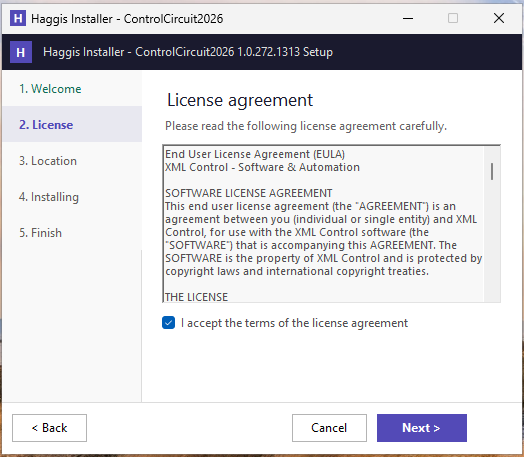
Read and accept the licence agreement
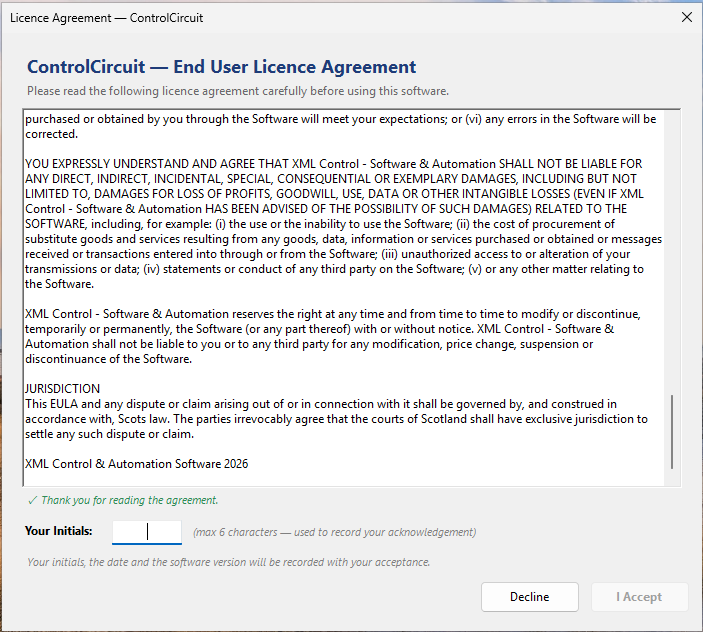
Read the End User Licence Agreement, tick I accept the terms of the license agreement, then choose Next. You cannot install without accepting.
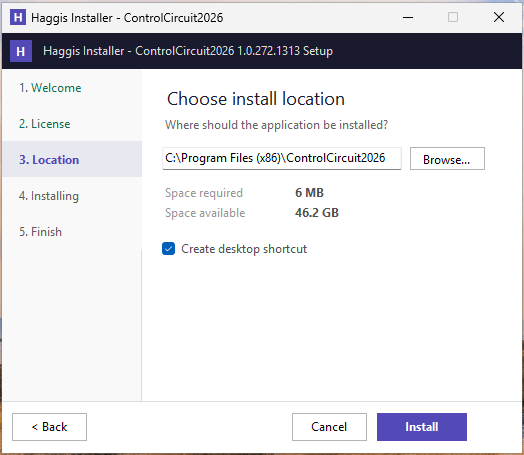
Choose where it goes
The default location is C:\Program Files (x86)\ControlCircuit2026, and for nearly everybody that is the right answer.
The page also shows the space required and the space available on that drive.
Create desktop shortcut is ticked for you. Choose Install.
Finish
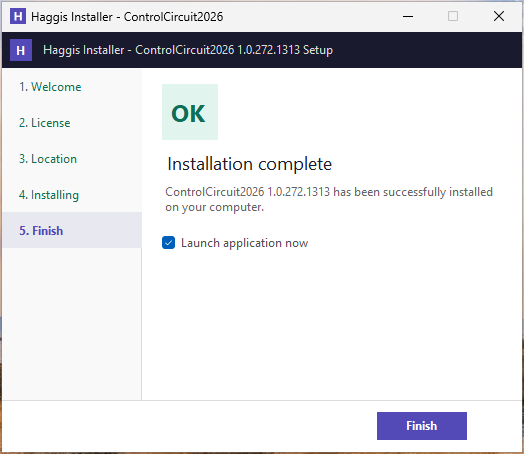
The install takes a few seconds. When it reports Installation complete, leave Launch application now ticked and choose Finish.