Goal
Find your way around the Symbol Editor, create your own symbol library, build a small symbol with Pins and a Tag, add data Fields to it, and use it on a Sheet.
Where we are
The built in Symbol Editor provides the tools to create and modify both the symbol libraries and the symbols within them. It also features DXF import of basic symbols, with formatting rules to suit Control Circuit, and with the PRO license, the ability to export high quality PDF symbol library reports suitable for customer and internal document standards.
A symbol is simply a collection of primitives such as circles, lines and rectangles, held in a small XML snippet that can be dropped readily onto a Sheet. As symbols are primarily there to convey electrical components, they also carry text, the primary one being the Tag of the symbol once it is in use on a Sheet.
There are many additional elements that make a symbol smarter, the chief one being the Field. Fields are pre-defined variable placeholders, for example KW, AMPS or FLC. In the Symbol Editor they appear as placeholder text, but on a Sheet they become dynamic and can be populated with specific values for each symbol, ready for reports and other outputs.
In this chapter we cover the basics: the use and management of libraries, creating a symbol, and adding Pins, a Contact Role, a Tag and Fields.
Part 1: Getting around
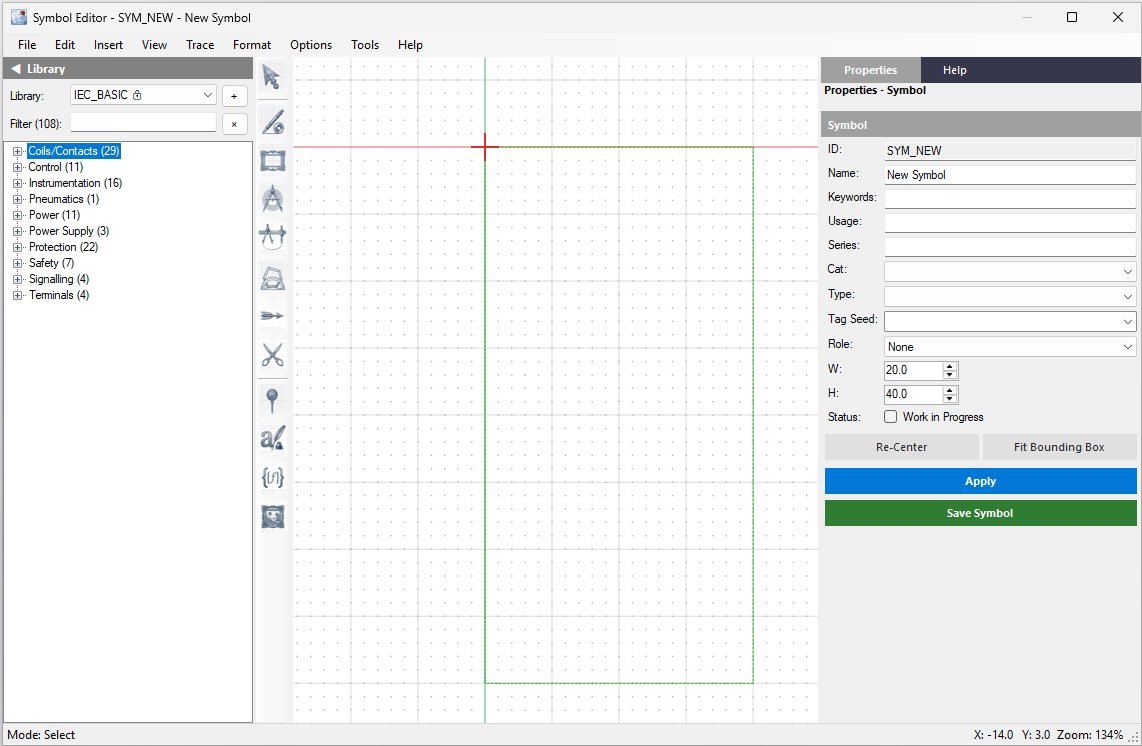
Open the Symbol Editor
With Control Circuit open, tap F12 or choose Symbols › Open Symbol Editor…
Use the dedicated help
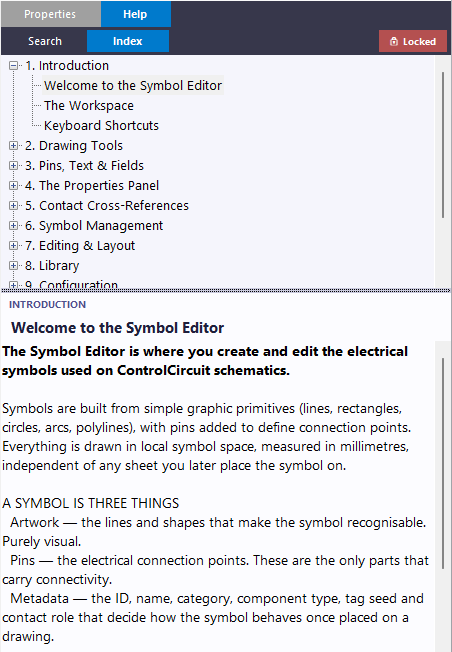
The Symbol Editor is quite comprehensive. For thorough detail of every feature, function and tool, refer to its own help section in the pane on the right-hand side.
The help has two modes. When Locked is displayed you can browse and search the help freely. When Live is displayed, the help follows you: hover over or click a menu and the matching topic appears.
Meet the shipped libraries
There are three shipped libraries: IEC_BASIC, NFPA_BASIC and TERMS_BASIC. As the names suggest, they are only there to get you started. You cannot save changes to a symbol in these libraries, but you can readily modify any symbol and, when you save, you will be prompted to Save As into a custom library.
You can create any number of libraries with any number of symbols, within the practical limits of actually finding them, so perhaps 200 symbols per library is a good number. Above the library tree is a Filter box that quickly narrows the list.
Part 2: Symbol properties
A symbol has two primary areas of importance, and the first is its own Symbol properties.
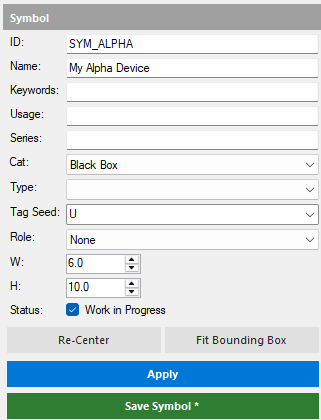
ID is the most important value. It is how the symbol is identified within the library, much like a filename, so it must be unique.
Name is how the symbol appears in the library listing, what you will see in the explorer.
Cat (Category) and Type are useful for sorting.
Tag Seed pre-seeds the Tag when the symbol is pulled onto a Sheet. Very important.
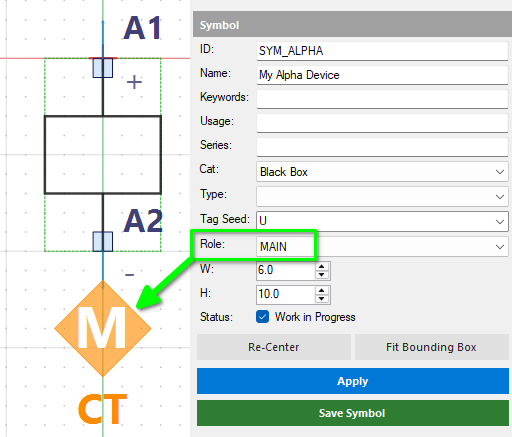
Role sets the default Contact Role, as met in the previous chapter: MAIN, NO, NC or AUX, depending on the function of the component. More on this in Part 5.
W and H are the Bounding Box (BB). On a Sheet the BB is the highlighted perimeter displayed when the symbol is selected. In the Symbol Editor it is the green dotted rectangle running from the red origin cross to the extents of all the primitives. Text objects are not included in the BB.
Status: if you have started one or more symbol designs, they are works in progress, so set the status accordingly. These symbols are marked in the tree, and they can be searched for in the library regardless of which section they are in.
Two buttons help with the layout. Re-Center moves the artwork up or down so it sits vertically in the middle of the BB. Fit Bounding Box constrains the BB to the limits of the primitives, so do this before a save.
Press Apply to accept changes, and Save Symbol when you want them written to the library.
Part 3: Pin properties
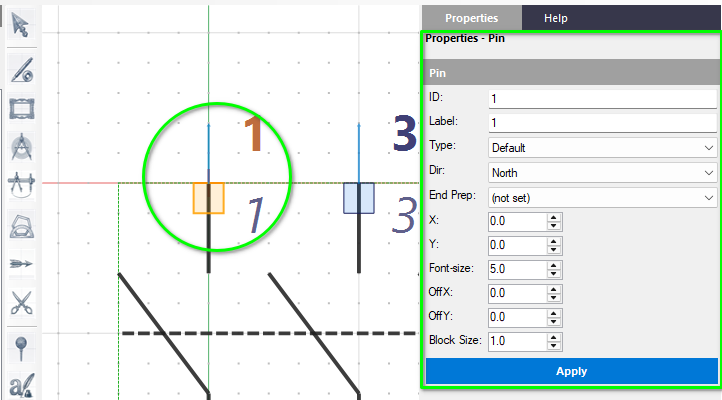
A symbol is only recognised by Control Circuit as an electrical component if it has one or more points where a wire can attach. These points are called Pins, and they are the second area of importance.
ID is the primary displayed text and, like a filename, must be fully unique within this symbol. It could be L1, A1, BRN and so on.
Label is the secondary text. It need not be unique, but should be something useful such as +24V or RST. In the circuit editor the ID and Label can be selectively shown or hidden for different scenarios.
Type chooses the sort of connection visually depicted to suit your symbol: Default (block), Plug, Socket, Screw or Cage Clamp.
Dir is the direction of a small arrow glyph showing where the incoming wire should arrive from. For example, if set to North, the incoming wire should arrive from the north.
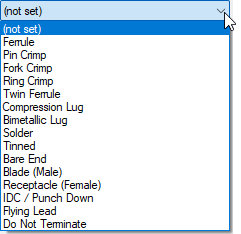
End Prep is how you intend this Pin’s connection to be terminated or prepared. It becomes valuable in the Wire Schedule reports, and is entirely optional.
The next five values (X, Y, Font-size, OffX and OffY) are the Pin’s position and the format and position of its text. Last comes Block Size, which sets the size of the connection drawn for the chosen Type, where 1.0 is the default size of a block.
Whenever you make a change, press Apply.
Part 4: Creating a symbol
So, let’s dive in and make a custom symbol.
Create a new library
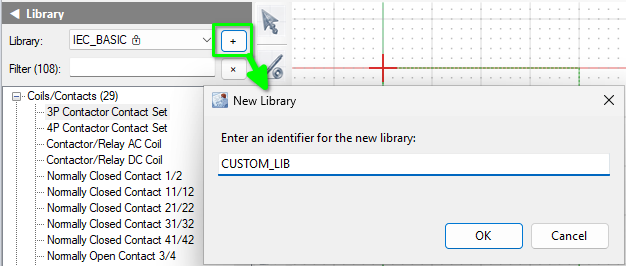
Press the + button to the right of the current library name and enter any unique name you choose.
Avoid shipped names If you enter IEC_BASIC, a User version of that library is created, so it is best to avoid names that look like the shipped libraries.
Start a blank symbol
We are now in a shiny new empty library. If any existing symbol is showing, close it with File › Close Symbol, or for completeness choose File › New Symbol to start afresh.
Set some basic values for ID, Name and Cat, and be sure to tick Work in Progress. Remember that the Tag Seed matters: it is what the symbol’s Tag starts life as on a Sheet, so choose one that suits the device. Pick one from the list, or type your own. Only the code itself is saved, so after a reload the box shows just the letter, here U. Press Apply and then Save Symbol. You will be warned that there are no Pins. That is fine for now, so press Yes.
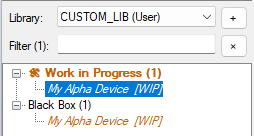
As we ticked Work in Progress, we can now see the effect in the library explorer: the symbol is listed in its category and also in a Work in Progress group at the top.
Place a Pin
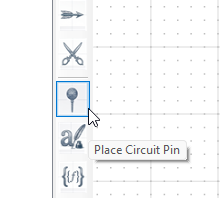
Next, let’s drop a connection Pin onto the symbol. Hover over any tool icon to see its purpose. When you get to Place Circuit Pin, press it, then click on the red origin cross.
Missed the cross? If you miss, you will get an off grid warning. That is fine: just proceed, then grab the Pin and move it to the centre of the red cross.
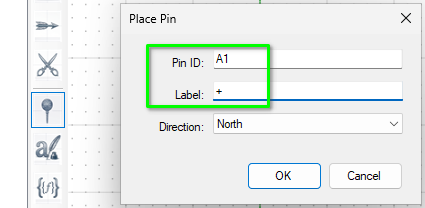
Enter the values as required: here a Pin ID of A1, a Label of + and a Direction of North.
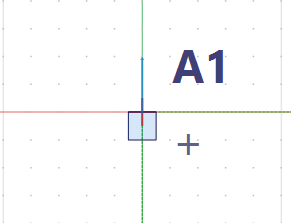
You should have something like this. Tap Esc to put the Pin tool away, or press the Pointer icon at the top of the toolbar.
Copy it to make the second Pin
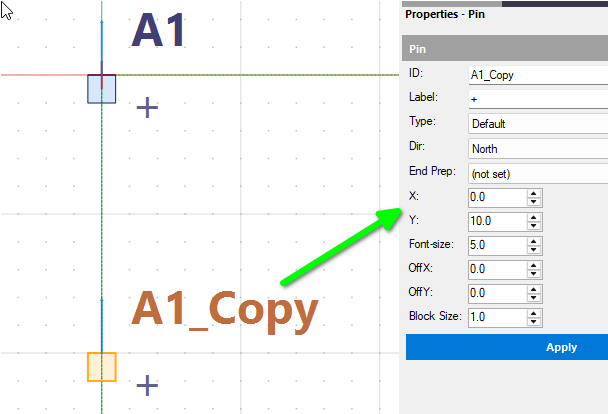
Hover over the Pin’s block and it glows yellow; select it and it turns orange. Press Ctrl+C then Ctrl+V to copy and paste, then use the keyboard arrows to move the copy until X is 0 and Y is 10.
Important! For Pins to connect correctly they should always sit on a 5 mm grid and pitch.
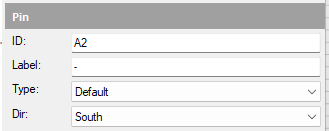
With the copied Pin still selected, update its parameters as required (here an ID of A2, a Label of - and a Direction of South), then tap Apply.
Draw the body
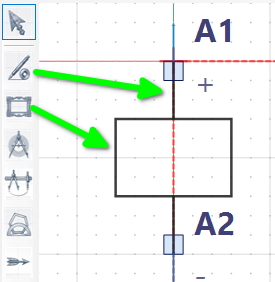
Use the line and rectangle tools to complete a layout as desired.
You can see the bounding box has turned red, meaning some primitives are outside it. Now is the time to press Fit Bounding Box to sort that out.
Part 5: Contact Roles in a symbol
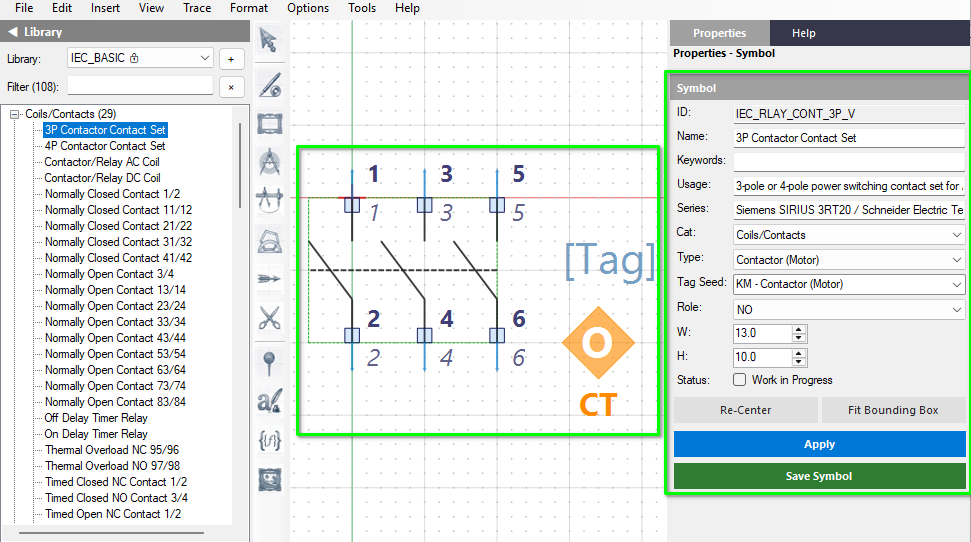
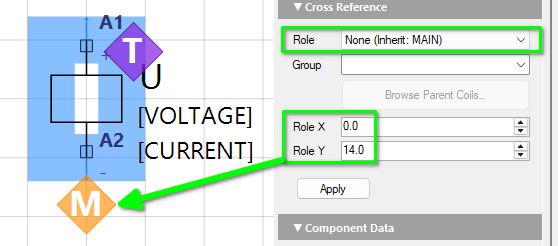
If we know that a certain symbol will usually represent a certain Contact Role, we may optionally choose that role and set it as the default in the symbol. When the symbol is brought onto a Sheet, its Role will show something like None (Inherit: MAIN). If you leave the Role out at the symbol stage you can still choose one on the Sheet, and if you do set one in the symbol you can still change it on the Sheet.
Once a Role has been selected in the Symbol Editor, a diamond glyph is shown on the symbol. The M denotes MAIN, and the CT beneath it stands for the Contact Table, which a MAIN element carries. You can mouse down on the diamond and move it to suit. Once the symbol is in use on a Sheet you will also have Role X and Role Y values to fine tune the position if required.
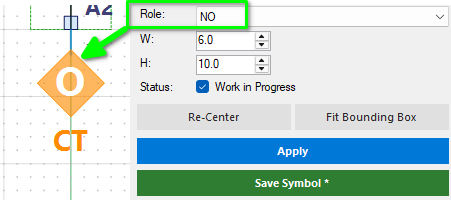
In the next example the Role is set to NO (Normally Open), so the diamond displays an O. Normally Closed shows a C and AUX shows an A.
Finally, here is a symbol with an assigned Contact Role once it has been brought onto a Sheet. As this is a MAIN element, you will notice that Browse Parent Coils… is greyed out: only the child roles (NO, NC and AUX) need to find a parent.
Part 6: Adding Fields
Now for Fields. The default and most critical one is for the Tag.
Add the Tag field
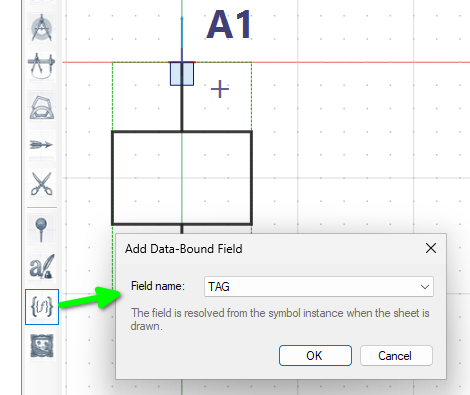
Press the Field tool, click down anywhere, then select TAG (the default) and press OK.
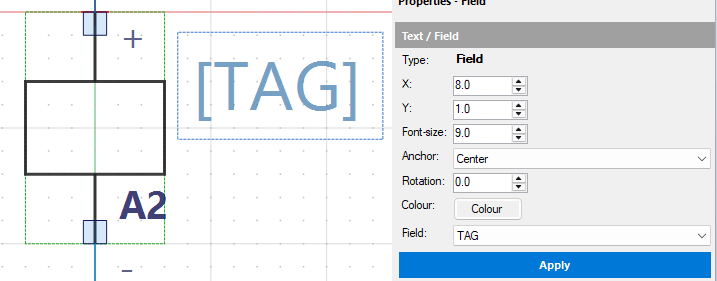
As the dialog notes, field values are resolved by Control Circuit once an actual instance of the symbol is placed on a Sheet. Press Esc to put the Field tool away, then select the [TAG] placeholder to see its properties.
Note Once a particular system field such as TAG has been used on a symbol, it no longer shows in the selection list.
Add a couple more
There are lots of Field values built in, and you can add some custom ones too (see Tools › Configure › Field Values). Add a couple more Fields, any you like, and then we will see how they behave on a Sheet.
Save your symbol and close the Symbol Editor (F12 closes it too).
Part 7: Using your symbol
Select your library
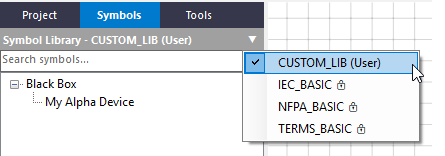
Back in the main editor, open the Symbols tab and ensure your new custom library is selected.
Fill in the Field values
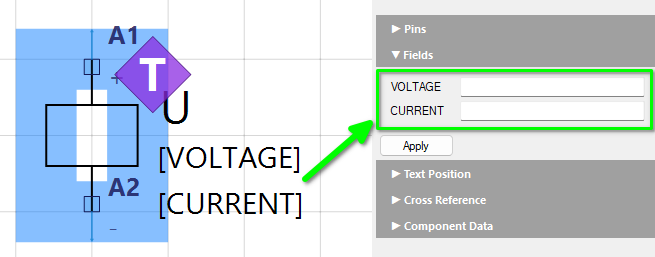
Drag the symbol onto the Sheet, select it and expand the Fields section of its Properties panel. Now you can enter specific values for that symbol. Be sure to press Apply after any update!
Until the symbol is numbered, its Tag shows the Tag Seed (the U here) rather than a finished Tag.
Handy tip Control Circuit’s engines do not themselves collect any data from custom Field values, but it is a trivial matter to write a script that parses the Sheet XML files and aggregates the information in these Fields.
Recall the last symbol
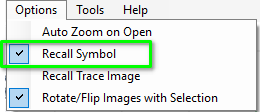
Back in the Symbol Editor, if you want your last symbol to be recalled automatically the next time it opens, tick Options › Recall Symbol.
Mark the symbol as finished
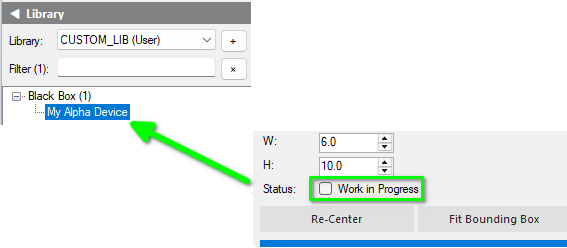
And for completeness: when the design is done, untick the symbol’s Work in Progress box, press Apply and save. The library explorer then shows it as a completed symbol, and the Work in Progress group disappears.
What you just did
Opened the Symbol Editor and met its dedicated help, in Locked and Live modes.
Learned the Symbol properties (ID, Name, Tag Seed, Role, Bounding Box, Status) and the Pin properties (ID, Label, Type, Dir, End Prep).
Created a custom library and a work in progress symbol with two Pins on the 5 mm grid.
Gave a symbol a default Contact Role, and saw it inherited on a Sheet.
Added the TAG Field and others, then filled in their values on a Sheet.
Next
That is a whirlwind tour of the Symbol Editor and of creating a symbol. There is much more to discover, but for today we will wrap up.
In the next chapter we turn to the Border Manager: how a Sheet’s Border is built and managed using our interactive XML and WYSIWYG editor, and including the grid references that drive the Grid numbering methods we met in Chapter 7.
![The symbol with the placeholders [TAG], [VOLTAGE] and [CURRENT] stacked beside it](20.png)