Goal
Understand why the wire is the most important thing in Control Circuit, meet the wiring tools, try the three ways of working with them, and link two sheets together with Interruption Nodes.
Why wiring matters
If you want to draw an electrical circuit in Windows Paint, you can. It will not be smart, it will not be very editable, and it will be hard to convince anyone of your circuit's integrity.
That is why we use dedicated tools: tools that are fit for purpose, built on logic, and easy to document and use in the real world. Control Circuit is one of them.
In Control Circuit the most fundamental element is the wire. It is a first-class citizen, and it is smart:
it knows what it is connected to, a Pin on a Symbol or a connection node (or that it is not connected to anything);
it has a wire type, for example 6mm² Black;
it may have a visual style;
and, most importantly, it knows which network it belongs to, for example L1 or 24VDC, from beginning to end, across devices, terminals and even sheets.
With that knowledge the wiring engine can work out wire numbers, build reports and help you catch design errors before they reach a printout.
What is a Pin? A Pin is an electrical connection point on a Symbol: the place where a wire attaches to a contactor coil, a push button, a motor, and so on. Every symbol has them, whether it comes from the shipped libraries or one you create yourself. A pin is to a symbol what a node is to a bare wire: it is where connections are made, and it knows what is attached to it.
Symbols and pins get a tutorial of their own later on. For now, wherever this chapter says “node or pin”, it means any point a wire can start or finish.
Part 1: The tools and the idea of a net
The Wiring palette
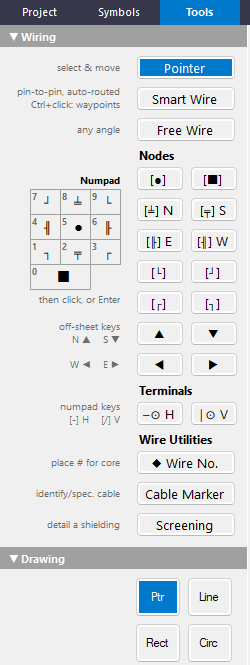
Open the Tools tab. The Wiring section is home to every wiring tool.
Pointer grabs, moves and edits nodes once they are placed.
Smart Wire works two ways. Click it, then draw a wire between two valid nodes or symbol pins. Or hold Ctrl and click to enter routing mode: start at a node or pin, then click a path to your destination.
Nodes are the smart connection points between wires. They come as branch, angle, junction and end cap types.
The number pad on your keyboard arms the Node tool, laid out to match the picture on the palette: 789 across the top, 5 for a junction, 0 for an end cap. Then click, or press Enter, to plant it.
The N, S, E and W nodes are Interruption Nodes. They carry a wire from one sheet to another (a supply L and N, for instance), or tidy up a link on the same sheet. We use them at the end of this chapter.
Terminals are smart nodes too. They can be assigned to a terminal rail or group and have formatted text. The number-pad keys - and / arm horizontal and vertical terminals, and once planted they can be rotated.
Wire Utilities come later, once there are nodes, symbols and wires to apply them to: Wire No. (a manual reference, or let the engine assign the number by your wiring group conventions), Cable Marker (placed over one or more wires to define the cores or single wires, with size, colour, component data and more) and Screening (like a Cable Marker, but with its own symbol and a node for earthing).
The Wiring section of the Tools tab.
One & Done The One & Done tick box (under Settings, on the Tools tab) decides what a tool does after you place something. Tick it and the tool puts itself down and returns to the Pointer after each placement. Leave it unticked (the default) and the tool stays armed, so every click places another one. That is handy for a row of nodes, and it is also how you end up with several nodes stacked invisibly on top of each other. Ctrl+Z is your friend.
Place some nodes
Choose a few node types and place them. Nothing is connected yet: they are just nodes sitting on the sheet.
Wire them up
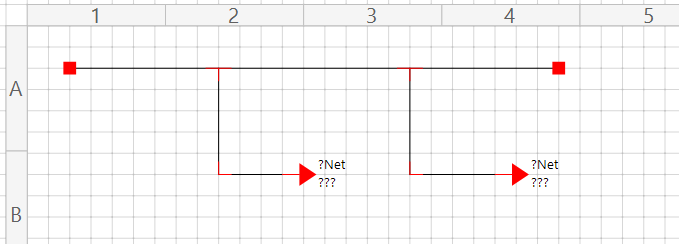
Press Alt+W (Perform Auto-Wire, as in Chapter 1). Wires appear between the nodes that line up.
Nodes have limits Each node type carries a fixed number of wires, because the shape it draws only makes sense for that many.
Branch: exactly three, forming a tee: a straight run with one leg off it. Two of the three leaving the same side is reported as an error, even though the count is right.
Angle: two.
Junction: three or four.
Terminal node: two, one wire in and one wire out.
Interruption Node and End cap: one.
If you need more wires than a node allows, use a different node type. The Sheet Validator flags any node that breaks its limit.
The Wiring menu
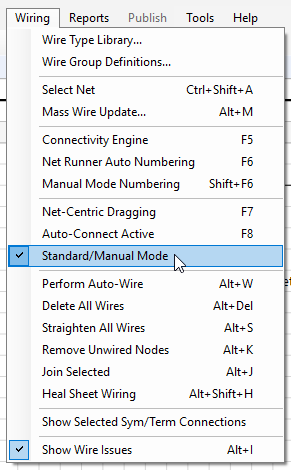
Open the Wiring menu, because the options here only make sense once you know what they are for.
By default the program is in Standard/Manual Mode (ticked in the menu). In that mode, as you connect nodes and symbol pins, whether by hand or with Alt+W, the connections are captured as you make them. Each node or pin now knows what it is connected to. It is not just lines that happen to touch on the sheet; it is relationships.
Select a whole net
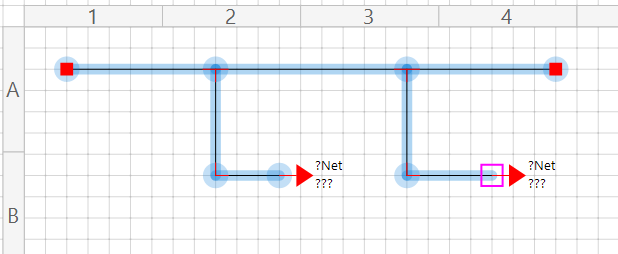
Click any wire or element. If the wiring is good, the whole net is selected and highlighted. The pink square marks the actual element under your cursor.
One click, one net. Everything the wire is connected to lights up.
Part 2: Three ways of working
The same wiring can be edited in three different ways. The status bar tells you which one is active.
Standard: move one thing at a time
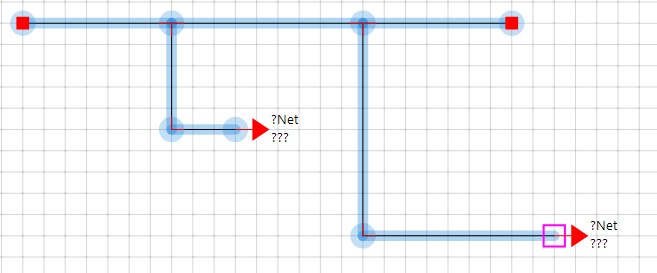
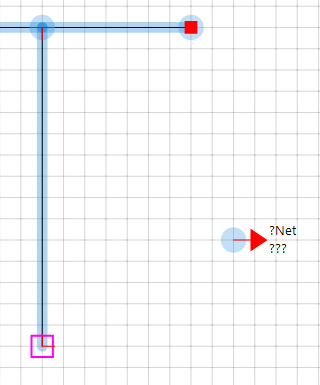
In Standard/Manual Mode, dragging a node (or nudging it with the arrow keys) moves that node only. Here the Interruption Node has been pulled away from where it started, and its wire stretches to follow.
Net-Centric: move the whole net
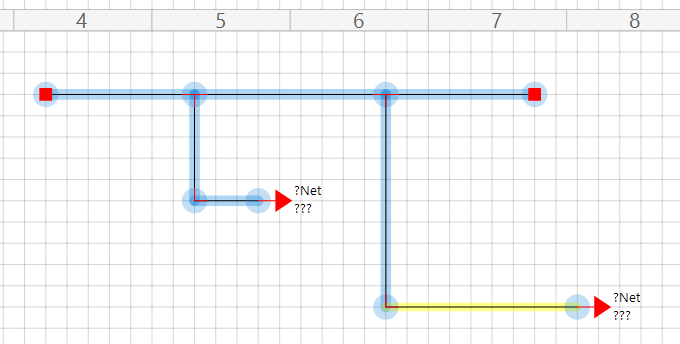
Press F7 to switch on Net-Centric Dragging. Now pick any wire and drag, and the whole net moves in unison.
Auto-Connect: let the wires follow you
Press F8 to switch on Auto-Connect. (If Net-Centric is still on, press F7 again to turn it off. The two switches are independent, and choosing Standard/Manual Mode from the Wiring menu clears both.) The status bar shows where you are.
The status bar names the active mode: Manual, Net-Centric, Auto-Connect, or both.
Auto-Connect is for when you drop the node type you want onto the sheet, then mouse or arrow-key nudge it into line with the node or symbol pin you want. The moment a valid connection is possible, snap, the wire is drawn.
Of course, as you scoot a node around it may latch onto the wrong pin when you were after the next one. No problem: select the node, press and hold Alt, and move on.
Hold Alt to detach
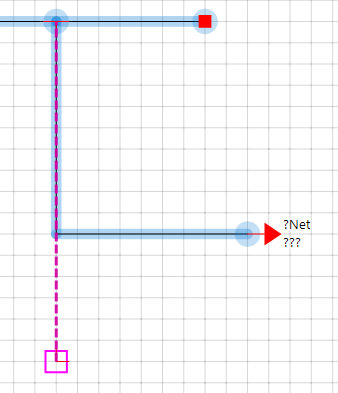
As you detach a node and move it away, a pink alignment radar appears when a valid connection point is reached.
Let go and the wires sort themselves out
When you release the movement and the Alt key, any wire that is now redundant is deleted, and any new wire is drawn for you.
Turn a node with Shift and the arrow keys
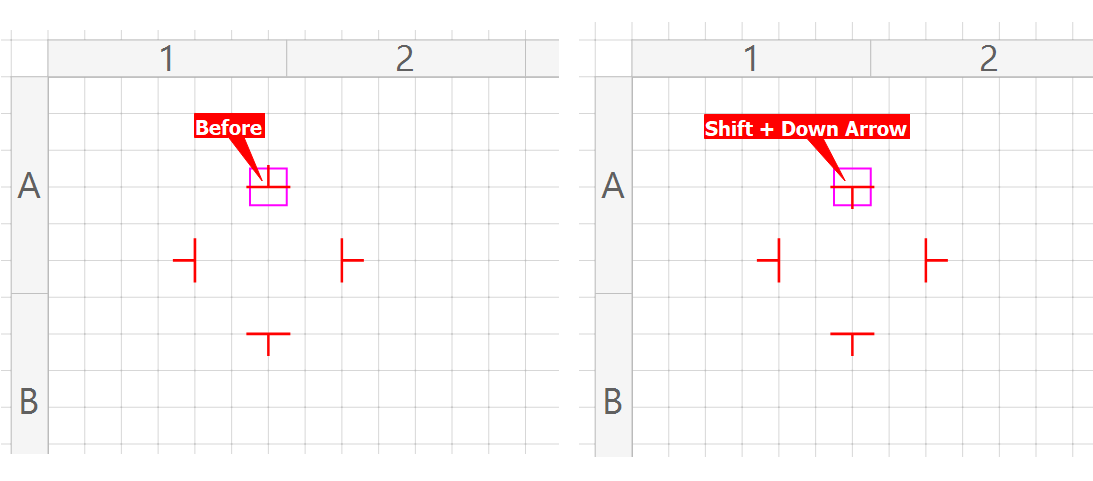
With any node selected, hold Shift and tap an arrow key to change its direction. It works on branch nodes, angle nodes, Interruption Nodes and terminal nodes. (Terminal nodes also have a separate horizontal/vertical setting in their properties.)
The same four branch nodes before and after. The selected one flips from up to down.
Turning terminals Turning a terminal node cuts its wires loose, because a wire no longer meets it at the same point. Re-wire afterwards with Alt+W.
Part 3: Linking sheets with Interruption Nodes
A wire cannot cross from one sheet to the next, but a net can. An Interruption Node says “this wire carries on elsewhere”, and a shared Net Name says where. We will do it on one sheet here; across sheets it works exactly the same way.
Set up two Interruption Nodes
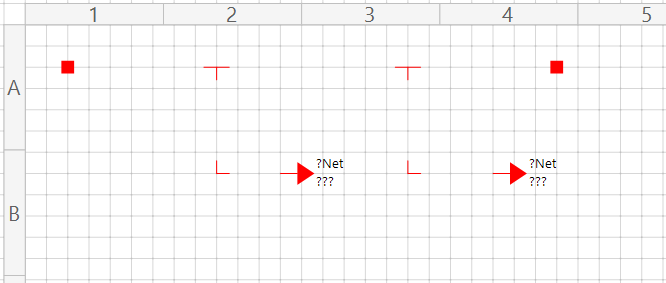
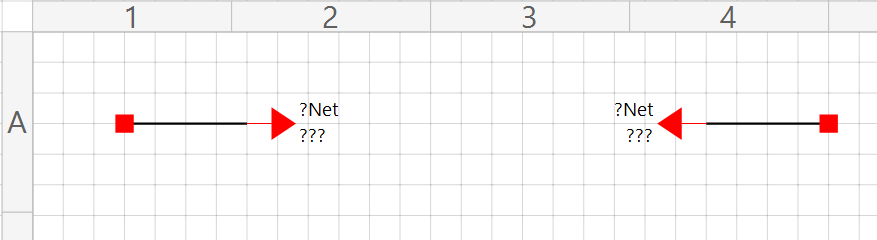
Press Alt+Delete. You are asked whether to delete all the wires on the sheet; choose Yes. Delete the nodes you no longer need, and re-arrange the rest into the layout shown, then press Alt+W to wire them up.
Give them the same Net Name
Select the first Interruption Node. In the Wiring section of its properties, type any name you like into Net Name, here BOB, and press Apply Wiring Changes. Then do exactly the same for the second node: the same Net Name, and Apply again.
The ??? and ?Net you see are placeholders. They stay until the program has had the chance to link the two nodes, which is the next step.
Update the cross references
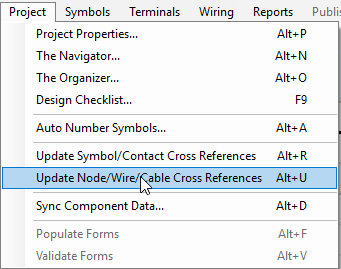
From the Project menu choose Update Node/Wire/Cable Cross References (Alt+U). However big the project, the cross-reference engine walks every Interruption Node on every sheet and links them up.
Linked
Each node now shows its partner's sheet and grid reference in place of the ???.
Each node names the sheet and grid reference of the other.
Poor Bob
Interruption Nodes link in pairs: one node to one other. If a name is left with an odd one out, the update stops and gives you an error report.
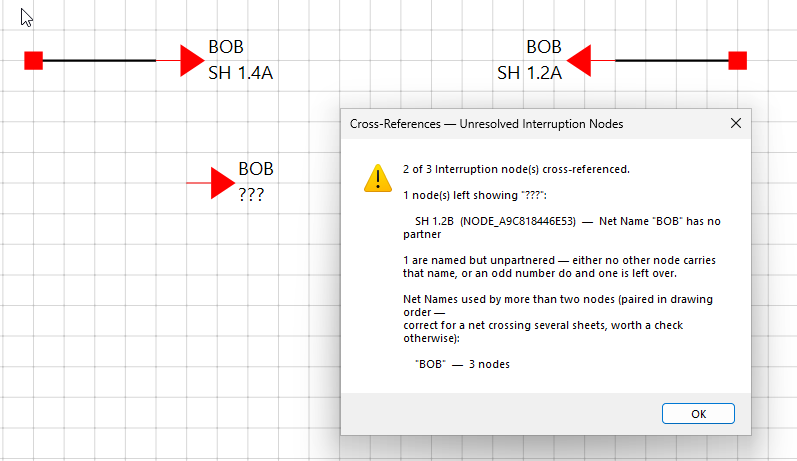
Twenty nodes called BOB is fine; they pair up. Add a twenty-first and one of them has no partner, so you get a report. Bob has no partner, poor Bob. The report also lists any Net Name used by more than two nodes, which is correct for a net that crosses several sheets but worth a glance otherwise.
A third BOB. Two are linked; one is left showing ???.
Jump to the other end
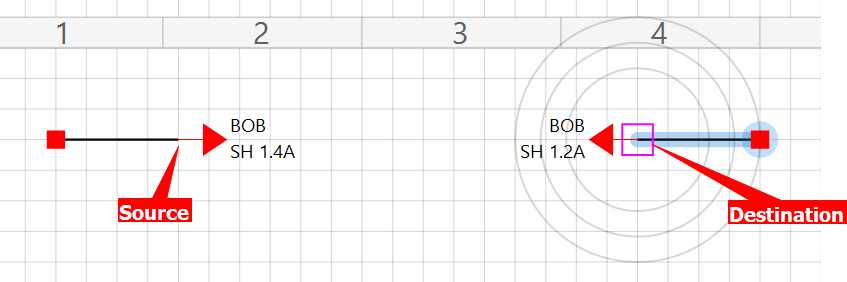
A nifty extra: select a source Interruption Node and press J. If the other node is valid, the cursor takes you straight to it. If it lives on another sheet you are asked to save the current one first (if it needs it) and then the new sheet loads. A landing beacon flashes briefly so you can see where you arrived.
Press J on the source and the destination is selected and ringed.
What you just did
Learned that a wire knows what it connects to and which net it belongs to, and why that matters.
Met the Wiring palette: Pointer, Smart Wire, nodes, terminals and the wire utilities.
Selected a whole net with one click.
Tried the three ways of working: Standard, Net-Centric (F7) and Auto-Connect (F8), and used Alt to detach a node.
Turned nodes with Shift and the arrow keys.
Paired two Interruption Nodes by Net Name, updated the cross references, and jumped between them with J.
Next
Chapter 3 looks at Net Names, Wire Types and Wire Groups: the values that make a wire smart, and the libraries behind them, on the way to wire numbering. Until then, the reference topics behind this chapter are in the program's help (F1): Working with Wiring, Perform Auto-Wire and One & Done Mode.